How to Remove Vocals from a Song: 5 Methods Compared (2026)

Whether you want to create karaoke tracks, practice an instrument without competing vocals, or isolate instrumentals for remixing — removing vocals from songs is one of the most requested audio processing tasks.
TL;DR: AI vocal removal (like StemSplit) produces the best results for most songs. Audacity is free but inconsistent. Finding pre-made instrumentals works when available. The "correct" method depends on your quality needs and technical comfort.
Quick Method Comparison
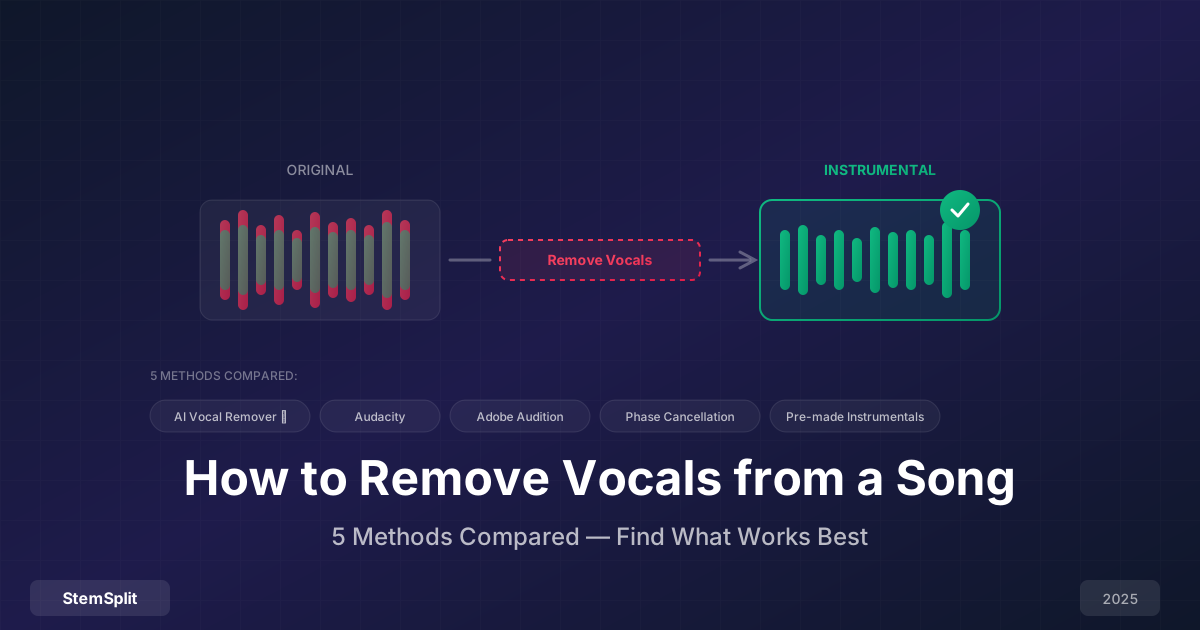
| Method | Quality | Ease | Cost | Best For |
|---|---|---|---|---|
| AI Vocal Remover | ⭐⭐⭐⭐⭐ | Easy | Low | Everyone |
| Audacity | ⭐⭐ | Moderate | Free | Testing |
| Adobe Audition | ⭐⭐⭐ | Moderate | $$$$ | Adobe users |
| Phase Cancellation | ⭐⭐ | Hard | Free | Specific cases |
| Pre-made Instrumentals | ⭐⭐⭐⭐⭐ | Easy | Varies | When available |
Method 1: AI Vocal Remover (Recommended)
Best for: Everyone. Highest quality, easiest process.
Modern AI vocal removers use neural networks trained on thousands of professionally separated tracks. They've learned to identify what vocals "sound like" across different genres, recording styles, and production techniques.
How AI Vocal Removal Works
- Audio analysis — AI examines frequency patterns, timing, and spatial characteristics
- Source identification — Distinguishes vocals from instruments based on learned patterns
- Separation — Creates distinct vocal and instrumental streams
- Output — Delivers clean instrumental track
Step-by-Step: Using StemSplit
StemSplit provides Demucs-quality vocal removal through a simple web interface.
Step 1: Prepare your song
- Use highest quality source available (WAV > FLAC > 320kbps MP3)
- Original studio recordings work best
- Avoid YouTube rips when possible
Step 2: Upload
- Go to StemSplit
- Drag and drop your audio file
- Supported: MP3, WAV, FLAC, M4A, OGG, WEBM
Step 3: Select output
- Choose "Instrumental Only" for vocal removal
- Or "All Stems" to get both vocal and instrumental
Step 4: Process
- AI processing takes 30-60 seconds
- Preview 30 seconds free
- Verify vocal removal quality
Step 5: Download
- Download your instrumental
- Choose WAV (highest quality) or MP3
Quality Expectations
Excellent results on:
- Clean, well-produced studio recordings
- Prominent, centered vocals
- Standard mixing approaches
- Most pop, rock, R&B, hip-hop
Good results on:
- Live recordings with some bleed
- Heavily effected vocals
- Dense arrangements
Challenging:
- Extremely lo-fi productions
- Heavy vocal processing (vocoders, etc.)
- Audio with significant noise
Pros & Cons
Pros:
- Best quality available
- Works on any song
- Fast (under 60 seconds)
- No technical skill required
- Consistent results
Cons:
- Costs money (pay-per-song)
- Requires internet connection
- Minor artifacts on complex material possible
Ready to remove vocals? Try StemSplit free — preview any song before downloading.
Method 2: Audacity (Free Software)
Best for: Budget-conscious users testing vocal removal, basic projects.
Audacity is free, open-source audio editing software available for Windows, Mac, and Linux. It includes a built-in vocal removal effect.
How It Works
Audacity uses older techniques:
- Phase cancellation — Inverts center-panned content
- Frequency filtering — Reduces vocal-typical frequencies
These methods assume vocals are:
- Panned exactly center
- Occupying predictable frequency ranges
- Not sharing frequencies with instruments
Because these assumptions often fail, results vary significantly.
Step-by-Step: Audacity Vocal Removal
Step 1: Download and install Audacity
- Visit audacityteam.org
- Download for your platform
- Install (straightforward process)
Step 2: Import your song
- File → Import → Audio
- Select your audio file
Step 3: Select all
- Edit → Select All (or Ctrl+A / Cmd+A)
Step 4: Apply vocal reduction
- Effect → Vocal Reduction and Isolation
- Select "Remove Vocals" preset
- Click Apply
Step 5: Listen and adjust
- Play back the result
- Try "Isolate Vocals and Invert" if needed
- Adjust strength slider if available
Step 6: Export
- File → Export Audio
- Choose MP3 or WAV
Quality Expectations
| Scenario | Expected Result |
|---|---|
| Simple pop with centered vocals | Fair |
| Complex arrangements | Poor |
| Stereo-wide vocals | Fails |
| Live recordings | Poor |
Pros & Cons
Pros:
- Completely free
- No internet required
- Works offline
- Good for learning
Cons:
- Inconsistent results
- Fails on many songs
- Removes other centered content (bass, kick)
- Hollow, thin sound common
- Significant learning curve
Verdict: Try it (it's free), but manage expectations. For serious use, AI tools are dramatically better.
Method 3: Adobe Audition
Best for: Adobe Creative Cloud subscribers doing podcast/video work.
Adobe Audition includes more sophisticated vocal isolation than Audacity, though still not AI-based.
Key Features
- Center Channel Extractor — More refined than Audacity
- Spectral editing — Visual frequency manipulation
- Better algorithms — Higher quality processing
Step-by-Step
Step 1: Open Adobe Audition
Step 2: Import audio
- File → Open
- Or drag file into workspace
Step 3: Apply Center Channel Extractor
- Effects → Stereo Imagery → Center Channel Extractor
- Choose preset or adjust manually
- Set to remove center (vocals)
Step 4: Fine-tune
- Adjust frequency crossover
- Modify center width
- Preview changes
Step 5: Export
- File → Export → File
- Choose format and settings
Quality Expectations
Better than Audacity, but still limited by non-AI approach:
- Works better on well-mixed tracks
- More control over processing
- Still fails on complex material
Pros & Cons
Pros:
- Better than Audacity
- Professional interface
- Good for Adobe users
- Integrates with Premiere Pro
Cons:
- Subscription required ($23/month)
- Not as good as AI solutions
- Requires learning curve
- Can't match AI quality
Method 4: Phase Cancellation (Manual)
Best for: When you have both the original mix AND an official instrumental.
Phase cancellation is the most technically accurate method — if you have the required files.
How It Works
When you have identical audio:
- Invert phase of one track
- Mix together — Identical content cancels out
- Result — Only differences remain (vocals)
This is how "official" vocal removals are sometimes created.
Requirements
You need:
- Original stereo mix
- Identical instrumental version
- Both from the same master
This is rare. Official instrumentals often differ slightly from album versions.
Step-by-Step (in any DAW)
Step 1: Import both files
- Original mix on Track 1
- Instrumental on Track 2
Step 2: Align perfectly
- Zoom in to sample level
- Match waveforms exactly
- Timing must be sample-accurate
Step 3: Invert instrumental
- Select instrumental track
- Apply phase invert (polarity flip)
Step 4: Mix together
- Play both tracks
- If aligned perfectly, instruments cancel
- Vocals remain (or artifact-heavy mess)
Quality Expectations
| Scenario | Result |
|---|---|
| Perfect alignment, identical masters | Excellent |
| Slight timing difference | Terrible (comb filtering) |
| Different masters | Doesn't work |
| No instrumental available | Doesn't apply |
Pros & Cons
Pros:
- Theoretically perfect results
- No AI artifacts
- Free (if you have the files)
Cons:
- Requires official instrumental (rare)
- Must be identical master
- Extremely difficult alignment
- Usually fails in practice
Method 5: Finding Pre-Made Instrumentals
Best for: When quality matters most and the song is available.
Sometimes the best "vocal removal" is just finding a professionally-made instrumental.
Where to Find Instrumentals
Official Sources:
- iTunes/Apple Music — Some singles include instrumentals
- Amazon Music — Karaoke and instrumental albums
- Beatport — DJ-oriented instrumentals
- Artist releases — Some artists release stems
Karaoke Sources:
- Karaoke Version — Professional remakes
- Karafun — Subscription service
- YouTube — Quality varies wildly
Community Sources:
- r/IsolatedInstrumentals — User-shared content
- Remix stems — From official remix contests
- DJ pools — Professional DJ services
Quality Expectations
| Source | Quality | Authenticity |
|---|---|---|
| Official instrumental | ⭐⭐⭐⭐⭐ | Exact |
| Professional karaoke remake | ⭐⭐⭐⭐ | Close recreation |
| YouTube karaoke | ⭐⭐ | Variable |
| User-uploaded content | ⭐⭐⭐ | Variable |
Pros & Cons
Pros:
- Potentially perfect quality
- No processing artifacts
- Instant (no processing time)
- Free options exist
Cons:
- Limited availability
- Many songs don't have instrumentals
- May sound different from original
- Legal gray areas for unofficial sources
Which Method Should You Use?
Decision Flowchart
Do you need high quality results?
├── Yes → Use AI Vocal Remover (StemSplit)
└── No → Try Audacity first (it's free)

Is there an official instrumental available?
├── Yes → Use that instead
└── No → Use AI Vocal Remover

Do you have Adobe Creative Cloud?
├── Yes → Adobe Audition is worth trying
└── No → Don't subscribe just for vocal removal

Is budget the main concern?
├── Yes → Audacity, then AI if needed
└── No → AI Vocal Remover
Recommendation by Use Case
| Use Case | Best Method |
|---|---|
| Karaoke (quality matters) | AI Vocal Remover |
| Quick karaoke (casual) | Pre-made if available, then AI |
| Practice track | AI Vocal Remover |
| Remix/production | AI Vocal Remover |
| Just testing | Audacity (free) |
| Professional studio | AI or official instrumental |
Tips for Better Vocal Removal
Regardless of method, these tips improve results:
Source Quality Matters
| Source Quality | Expected Output |
|---|---|
| Lossless (WAV/FLAC) | Best possible |
| 320kbps MP3 | Excellent |
| 192-256kbps MP3 | Good |
| 128kbps MP3 | Acceptable |
| YouTube rip | Variable |
Rule: Better input = better output. Always use the highest quality source available.
Know What to Expect
Will remove cleanly:
- Lead vocals
- Centered vocal content
- Clear, prominent vocals
May partially remain:
- Heavy reverb tails
- Backup harmonies (panned wide)
- Vocal ad-libs
Won't be affected:
- Instruments (mostly)
- Drums, bass, guitars, synths
Post-Processing
After vocal removal, you may want to:
- Normalize — Adjust volume level
- EQ — Clean up any remaining artifacts
- Fade in/out — Clean start and end
- Export appropriately — WAV for production, MP3 for casual use
FAQ
Can you completely remove vocals from any song?
No method achieves 100% perfect removal on all songs. AI tools come closest, typically achieving 95%+ removal on well-produced tracks. Minor vocal remnants (reverb tails, harmonies) may remain.
Is vocal removal legal?
Creating instrumental versions for personal use (practice, private karaoke) is generally acceptable. Commercial use, distribution, or public performance requires proper licensing.
Why does Audacity work poorly on some songs?
Audacity's vocal removal relies on vocals being centered and instruments being panned wider. Modern productions often break these assumptions. AI doesn't have this limitation.
What's the best free vocal remover?
Audacity is free but inconsistent. VocalRemover.org is free with limitations. For consistent quality, StemSplit offers affordable pay-per-song pricing.
How long does vocal removal take?
- AI tools: 30-60 seconds
- Audacity: Instant (processing, not including setup)
- Manual methods: Minutes to hours depending on complexity
Can I remove vocals from a video?
Yes. Extract the audio, process it, then replace the audio track in the video. Or some AI tools accept video files directly.
The Bottom Line
In 2025, AI vocal removal is the clear winner for most use cases. The quality gap between AI and traditional methods is substantial, and the ease of use makes it accessible to everyone.
- If quality matters: Use AI (like StemSplit)
- If budget is tight: Try Audacity first, AI if needed
- If an instrumental exists: Use that
Don't spend hours wrestling with phase cancellation or Audacity settings when AI produces better results in 60 seconds.
Remove Vocals from Any Song
Get clean instrumentals in under a minute.
- ✅ Works with any song
- ✅ High-quality AI separation
- ✅ Preview 30 seconds free
- ✅ No subscription required