Demucs Tutorial: Meta's AI Stem Separator — Complete Technical Guide (2026)

StemSplit Team
StemSplit Team
Demucs Tutorial: Meta's AI Stem Separator — Complete Technical Guide (2026)
Summarize with AI:

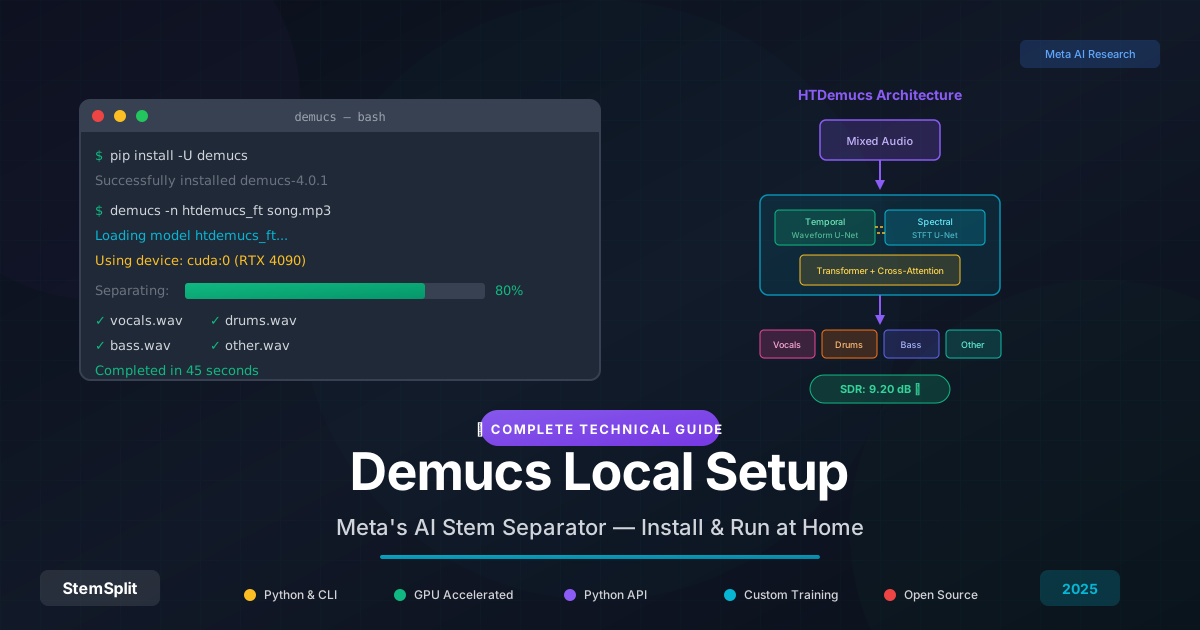
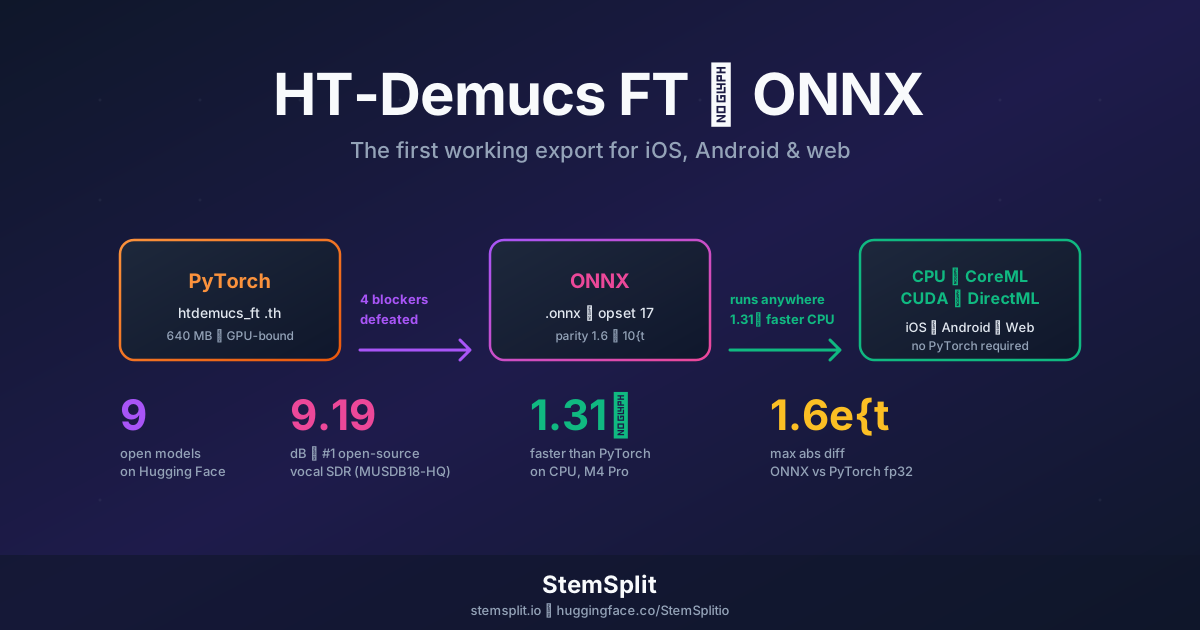
Demucs is the AI model powering most professional stem separation tools today — including StemSplit. This guide covers everything from installation to architecture to training custom models, written for both curious musicians and ML engineers.

TL;DR: Demucs is a hybrid transformer model by Meta AI that separates audio into vocals, drums, bass, and other instruments. Install with pip install -U demucs, run with demucs your_song.mp3, and get studio-quality stems in minutes. For best results, use the htdemucs_ft model with GPU acceleration.


What Is Demucs?

Demucs (Deep Extractor for Music Sources) is an open-source AI model developed by Meta AI Research for music source separation. It takes a mixed audio track and outputs isolated stems — typically vocals, drums, bass, and "other" (everything else).

What makes Demucs significant:

  • State-of-the-art quality: Achieves an SDR (Signal-to-Distortion Ratio) of 9.20 dB on the MUSDB18-HQ benchmark — higher than any previous model
  • Waveform-based processing: Works directly on raw audio, not just spectrograms, preserving phase information
  • Open source: MIT licensed, free for commercial and personal use
  • Battle-tested: Powers most professional stem separation services

The latest version, Hybrid Transformer Demucs (HTDemucs), represents the fourth major iteration and combines the best of both time-domain and frequency-domain processing.


The Evolution: v1 → v4

Understanding Demucs's evolution helps explain why it works so well.

Demucs v1 (2019)

The original Demucs introduced a U-Net architecture operating directly on waveforms — a departure from spectrogram-only methods. Key innovations:

  • Gated Linear Units (GLUs) for activation
  • Bidirectional LSTM between encoder and decoder
  • Skip connections from encoder to decoder layers
Architecture: Pure waveform U-Net with BiLSTM
SDR: ~6.3 dB on MUSDB18
Innovation: First competitive waveform-only model

Demucs v2 (2020)

Improved depth and training:

  • Deeper encoder/decoder (6 layers → 7 layers)
  • Better weight initialization
  • Data augmentation improvements
SDR: ~6.8 dB on MUSDB18
Innovation: Proved waveform models could compete with spectrogram methods

Demucs v3 / Hybrid Demucs (2021)

The breakthrough: combining spectrogram and waveform processing:

  • Dual U-Net architecture (one for time domain, one for frequency domain)
  • Shared representations between branches
  • Cross-domain fusion at the bottleneck
SDR: ~7.5 dB on MUSDB18
Innovation: Best of both worlds — spectrogram precision + waveform phase

Demucs v4 / HTDemucs (2022-2023)

The current state-of-the-art, adding Transformers:

  • Transformer layers in both encoder and decoder
  • Cross-attention between temporal and spectral branches
  • Self-attention for long-range dependencies
SDR: 9.20 dB on MUSDB18-HQ
Innovation: Transformers capture long-range musical structure

Architecture Deep Dive

For ML practitioners: here's how HTDemucs actually works.

High-Level Structure

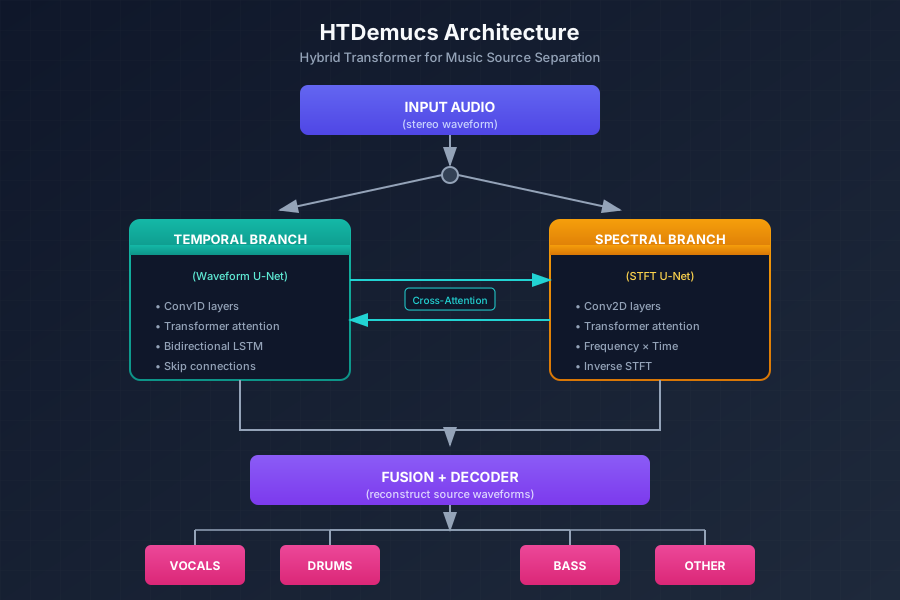
HTDemucs uses a dual-path architecture with two parallel U-Net branches that share information:

HTDemucs Architecture - Dual-path model with temporal and spectral branches

Temporal Branch (Waveform Processing)

The temporal branch processes raw audio samples:

  1. Encoder: Stack of strided 1D convolutions that progressively downsample the audio
  2. Bottleneck: BiLSTM + Transformer self-attention
  3. Decoder: Transposed convolutions that upsample back to original resolution
  4. Skip connections: U-Net style connections from encoder to decoder
# Simplified encoder layer structure
class TemporalEncoderLayer:
    def __init__(self, in_channels, out_channels, kernel_size=8, stride=4):
        self.conv = nn.Conv1d(in_channels, out_channels, kernel_size, stride)
        self.norm = nn.GroupNorm(1, out_channels)
        self.glu = nn.GLU(dim=1)  # Gated Linear Unit
        
    def forward(self, x):
        x = self.conv(x)
        x = self.norm(x)
        x = self.glu(x)  # Output is out_channels // 2
        return x

Spectral Branch (Spectrogram Processing)

The spectral branch processes the Short-Time Fourier Transform (STFT) of the audio:

  1. STFT computation: Converts waveform to complex spectrogram
  2. 2D Convolutions: Process frequency × time representations
  3. Transformer layers: Self-attention in frequency and time dimensions
  4. Inverse STFT: Convert back to waveform

Key parameters:

  • STFT window: 4096 samples
  • Hop length: 1024 samples
  • Frequency bins: 2049 (for 44.1kHz audio)

Cross-Domain Fusion

The magic happens where the branches communicate:

# Cross-attention between branches (simplified)
class CrossDomainAttention:
    def forward(self, temporal_features, spectral_features):
        # Temporal attends to spectral
        temporal_out = self.temporal_cross_attn(
            query=temporal_features,
            key=spectral_features,
            value=spectral_features
        )
        
        # Spectral attends to temporal
        spectral_out = self.spectral_cross_attn(
            query=spectral_features,
            key=temporal_features,
            value=temporal_features
        )
        
        return temporal_out, spectral_out

Why This Architecture Works

  1. Phase preservation: Waveform branch maintains exact phase relationships — critical for clean separation
  2. Frequency precision: Spectral branch excels at separating instruments with distinct frequency profiles
  3. Long-range dependencies: Transformers model musical structure (verse-chorus patterns, repeated motifs)
  4. Multi-scale features: U-Net captures both fine detail and global context

Available Models Compared

Demucs offers several pretrained models. Here's how they compare:

ModelStemsSDR (vocals)SDR (avg)SpeedVRAMBest For
htdemucs48.99 dB7.66 dBFast~4GBGeneral use, good balance
htdemucs_ft49.20 dB7.93 dBSlow~6GBBest quality
htdemucs_6s68.83 dBN/AMedium~5GBGuitar/piano separation
mdx48.5 dB7.2 dBFast~3GBLower VRAM systems
mdx_extra48.7 dB7.4 dBMedium~4GBBetter than mdx
mdx_q48.3 dB7.0 dBFastest~2GBQuick previews

Model Details

htdemucs (default)

  • The standard Hybrid Transformer model
  • Good quality/speed tradeoff
  • Trained on internal Meta dataset + MUSDB18-HQ

htdemucs_ft (fine-tuned)

  • Same architecture, fine-tuned on additional data
  • Highest quality available
  • Recommended for final production work

htdemucs_6s (6-stem)

  • Separates into: vocals, drums, bass, guitar, piano, other
  • Useful when you need guitar or piano isolated
  • Slightly lower quality per-stem due to harder task

mdx / mdx_extra

  • Models from the MDX 2021 competition
  • Use "bag of models" ensemble approach
  • Lower VRAM requirements

System Requirements

Minimum Requirements

ComponentMinimumRecommended
CPUAny modern x86_644+ cores
RAM8 GB16 GB
GPUNone (CPU works)NVIDIA 4GB+ VRAM
Storage2 GB5 GB (for models)
Python3.8+3.10+

Processing Time Estimates

For a 4-minute stereo track at 44.1kHz:

Hardwarehtdemucshtdemucs_ft
NVIDIA RTX 4090~30 sec~60 sec
NVIDIA RTX 3080~45 sec~90 sec
NVIDIA RTX 3060~90 sec~180 sec
Apple M1 Pro~120 sec~240 sec
Intel i7 (CPU)~8 min~15 min
Intel i5 (CPU)~15 min~25 min

GPU VRAM Usage

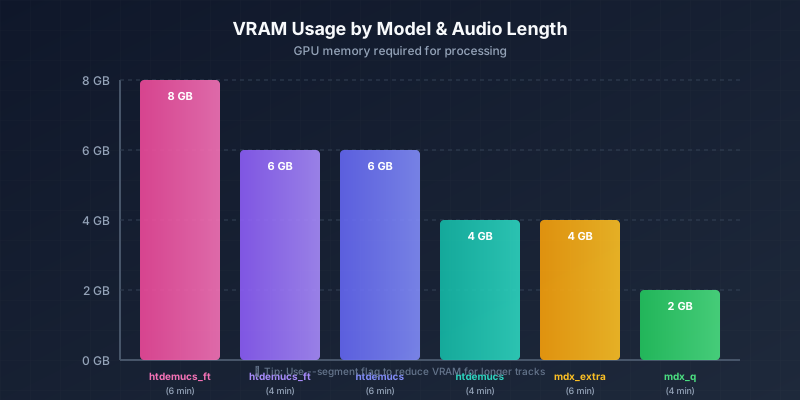
VRAM requirements depend on audio length and model:

VRAM Usage by Model and Audio Length - GPU memory requirements for different Demucs models

If you run out of VRAM, use the --segment flag to process in smaller chunks.


Installation Guide

Option 1: pip (Simplest)

For most users who just want to separate tracks:

# Create a virtual environment (recommended)
python3 -m venv demucs_env
source demucs_env/bin/activate  # Windows: demucs_env\Scripts\activate

# Install Demucs
pip install -U demucs

# Verify installation
demucs --help

You should see:

usage: demucs [-h] [-s SHIFTS] [--overlap OVERLAP] [-d DEVICE]
              [--two-stems STEM] [-n NAME] [-v] ...

positional arguments:
  tracks                Path to tracks

optional arguments:
  -h, --help            show this help message and exit
  ...

For GPU acceleration and ML development:

# Clone the repository
git clone https://github.com/facebookresearch/demucs
cd demucs

# Create environment (choose one)
conda env update -f environment-cuda.yml  # For NVIDIA GPU
conda env update -f environment-cpu.yml   # For CPU only

# Activate environment
conda activate demucs

# Install in development mode
pip install -e .

# Verify GPU is detected
python -c "import torch; print(f'CUDA available: {torch.cuda.is_available()}')"

Expected output with GPU:

CUDA available: True

Option 3: Docker (Cleanest Isolation)

For reproducible environments:

# Dockerfile
FROM pytorch/pytorch:2.1.0-cuda12.1-cudnn8-runtime

RUN pip install -U demucs

WORKDIR /audio
ENTRYPOINT ["demucs"]

Build and run:

docker build -t demucs .
docker run --gpus all -v $(pwd):/audio demucs song.mp3

Platform-Specific Notes

macOS (Intel)

# Install FFmpeg (required)
brew install ffmpeg

# Install SoundTouch (optional, for data augmentation)
brew install sound-touch

pip install -U demucs

macOS (Apple Silicon M1/M2/M3)

# FFmpeg
brew install ffmpeg

# Install with MPS support (Metal Performance Shaders)
pip install -U demucs

# Verify MPS is available
python -c "import torch; print(f'MPS available: {torch.backends.mps.is_available()}')"

Use --device mps flag when running Demucs.

Windows

# Using Anaconda Prompt:
conda install -c conda-forge ffmpeg
pip install -U demucs soundfile

# Prevent CUDA memory issues
set PYTORCH_CUDA_ALLOC_CONF=max_split_size_mb:128

Linux (Ubuntu/Debian)

# System dependencies
sudo apt-get update
sudo apt-get install ffmpeg libsndfile1

# Install Demucs
pip install -U demucs

# Optional: Prevent CUDA memory caching issues
export PYTORCH_NO_CUDA_MEMORY_CACHING=1

Basic Usage

Separating a Track

The simplest command:

demucs song.mp3

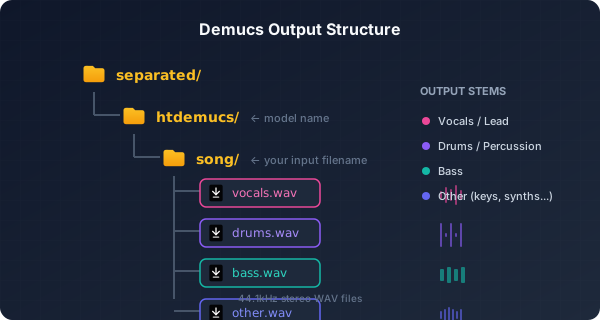
Output structure:

Demucs output folder structure showing separated stems

Common Use Cases

Extract just vocals (karaoke creation):

demucs --two-stems vocals song.mp3

Output: vocals.wav and no_vocals.wav (instrumental)

Extract just instrumental:

demucs --two-stems vocals song.mp3
# Then use the no_vocals.wav file

Process multiple files:

demucs song1.mp3 song2.mp3 song3.mp3

Output as MP3 instead of WAV:

demucs --mp3 --mp3-bitrate 320 song.mp3

Use highest quality model:

demucs -n htdemucs_ft song.mp3

Specify output directory:

demucs -o ./my_stems song.mp3

Advanced Command-Line Options

Here's every flag explained:

Model Selection

# Use specific model
demucs -n htdemucs_ft song.mp3     # Best quality
demucs -n htdemucs_6s song.mp3     # 6-stem output
demucs -n mdx_q song.mp3           # Fastest/smallest

Device Control

# Force CPU processing
demucs -d cpu song.mp3

# Use specific GPU
demucs -d cuda:0 song.mp3          # First GPU
demucs -d cuda:1 song.mp3          # Second GPU

# Apple Silicon
demucs -d mps song.mp3

Quality vs Memory Tradeoffs

# Segment length (seconds) - lower = less VRAM, potentially worse quality
demucs --segment 10 song.mp3       # For very low VRAM
demucs --segment 40 song.mp3       # Default for most models

# Overlap between segments (0-0.99)
demucs --overlap 0.25 song.mp3     # Default

# Shifts - increases quality by ~0.2 SDR, but slower
demucs --shifts 2 song.mp3         # Process twice with time shifts
demucs --shifts 5 song.mp3         # More shifts = better quality, slower

Output Format

# WAV options
demucs --int24 song.mp3            # 24-bit WAV output
demucs --float32 song.mp3          # 32-bit float WAV

# MP3 options
demucs --mp3 song.mp3              # Default bitrate
demucs --mp3 --mp3-bitrate 320 song.mp3  # High quality
demucs --mp3 --mp3-preset 2 song.mp3     # Best quality preset
demucs --mp3 --mp3-preset 7 song.mp3     # Fastest encoding

# Clipping prevention
demucs --clip-mode rescale song.mp3      # Rescale to prevent clipping
demucs --clip-mode clamp song.mp3        # Hard limit (default)
demucs --clip-mode none song.mp3         # No protection

Parallel Processing

# Number of parallel jobs (increases memory usage)
demucs -j 4 song.mp3               # Use 4 cores
demucs -j 8 song1.mp3 song2.mp3    # Process multiple files in parallel

Complete Example

Maximum quality, GPU accelerated:

demucs \
  -n htdemucs_ft \
  -d cuda:0 \
  --shifts 2 \
  --overlap 0.25 \
  --float32 \
  --clip-mode rescale \
  -o ./output \
  song.mp3

Python API Integration

For integrating Demucs into your applications:

Basic Programmatic Usage

import demucs.separate

# Using argument list (like CLI)
demucs.separate.main([
    "--mp3",
    "--two-stems", "vocals",
    "-n", "htdemucs",
    "song.mp3"
])

Using the Separator Class

from demucs.api import Separator
import torch

# Initialize separator
separator = Separator(
    model="htdemucs_ft",
    segment=40,
    shifts=2,
    device="cuda" if torch.cuda.is_available() else "cpu",
    progress=True
)

# Load and separate
origin, separated = separator.separate_audio_file("song.mp3")

# `separated` is a dict with tensor values:
# separated["vocals"] -> torch.Tensor
# separated["drums"] -> torch.Tensor
# separated["bass"] -> torch.Tensor
# separated["other"] -> torch.Tensor

# Save individual stems
from demucs.api import save_audio

for stem_name, stem_tensor in separated.items():
    save_audio(
        stem_tensor,
        f"output/{stem_name}.wav",
        samplerate=separator.samplerate,
        clip="rescale"
    )

Direct Model Access

For ML practitioners who want more control:

from demucs import pretrained
from demucs.apply import apply_model
import torch
import torchaudio

# Load model
model = pretrained.get_model("htdemucs_ft")
model.eval()

# Move to GPU if available
device = torch.device("cuda" if torch.cuda.is_available() else "cpu")
model.to(device)

# Load audio
waveform, sample_rate = torchaudio.load("song.mp3")

# Ensure stereo
if waveform.shape[0] == 1:
    waveform = waveform.repeat(2, 1)

# Add batch dimension and move to device
mix = waveform.unsqueeze(0).to(device)

# Apply model
with torch.no_grad():
    sources = apply_model(
        model,
        mix,
        shifts=2,
        split=True,
        overlap=0.25,
        progress=True,
        device=device
    )

# sources shape: (batch, num_sources, channels, samples)
# sources[0, 0] = drums
# sources[0, 1] = bass
# sources[0, 2] = other
# sources[0, 3] = vocals

# Get source names
source_names = model.sources  # ['drums', 'bass', 'other', 'vocals']

Callback for Progress Tracking

from demucs.api import Separator

def progress_callback(info):
    """Called during separation with progress info."""
    state = info.get("state", "")
    if state == "start":
        print(f"Processing segment at offset {info['segment_offset']}")
    elif state == "end":
        progress = info['segment_offset'] / info['audio_length'] * 100
        print(f"Progress: {progress:.1f}%")

separator = Separator(
    model="htdemucs",
    callback=progress_callback
)

origin, separated = separator.separate_audio_file("song.mp3")

Training Custom Models

For researchers and advanced users who want to train on custom data.

Prerequisites

  1. Clone the full repository:
git clone https://github.com/facebookresearch/demucs
cd demucs
conda env update -f environment-cuda.yml
conda activate demucs
pip install -e .
  1. Install Dora (Meta's experiment manager):
pip install dora-search

Dataset Preparation

Demucs is typically trained on MUSDB18-HQ, which contains:

  • 150 full-length songs (100 train, 50 test)
  • Separate stems for each song
  • 44.1kHz stereo WAV files

Download and set path:

# Download MUSDB18-HQ from Zenodo
# Set environment variable
export MUSDB_PATH=/path/to/musdb18hq

Training a Model

Basic training command:

# Train using Dora
dora run -d solver=htdemucs dset=musdb_hq

# With specific configuration
dora run -d solver=htdemucs dset=musdb_hq \
    model.depth=6 \
    model.channels=48 \
    optim.lr=3e-4 \
    optim.epochs=360

Training parameters explained:

ParameterDescriptionDefault
model.depthEncoder/decoder depth6
model.channelsBase channel count48
model.growthChannel growth factor2
optim.lrLearning rate3e-4
optim.epochsTraining epochs360
optim.batch_sizeBatch size4

Fine-Tuning an Existing Model

To fine-tune on custom data:

  1. Prepare your dataset in MUSDB format
  2. Run fine-tuning:
dora run -d -f 81de367c continue_from=81de367c dset=your_dataset variant=finetune

Evaluation

Evaluate model on test set:

dora run -d solver=htdemucs dset=musdb_hq evaluate=true

Output includes SDR (Signal-to-Distortion Ratio) per source:

Source      | SDR (dB)
------------|--------
vocals      | 8.99
drums       | 8.72
bass        | 7.84
other       | 5.09
------------|--------
average     | 7.66

Troubleshooting Common Issues

CUDA Out of Memory

Error:

RuntimeError: CUDA out of memory. Tried to allocate X MiB

Solutions:

# Use smaller segments
demucs --segment 10 song.mp3

# Use CPU instead
demucs -d cpu song.mp3

# Use a lighter model
demucs -n mdx_q song.mp3

# Set PyTorch memory config (Windows)
set PYTORCH_CUDA_ALLOC_CONF=max_split_size_mb:128

# Or on Linux/Mac
export PYTORCH_CUDA_ALLOC_CONF=max_split_size_mb:128

Model Download Issues

Error:

HTTPError: 404 Client Error: Not Found

Solutions:

# Clear cache and retry
rm -rf ~/.cache/torch/hub/checkpoints/
demucs song.mp3

# Manual download
# Models are stored at: https://dl.fbaipublicfiles.com/demucs/

FFmpeg Not Found

Error:

FileNotFoundError: [Errno 2] No such file or directory: 'ffmpeg'

Solutions:

# macOS
brew install ffmpeg

# Ubuntu/Debian
sudo apt-get install ffmpeg

# Windows (via conda)
conda install -c conda-forge ffmpeg

Module Not Found

Error:

ModuleNotFoundError: No module named 'demucs'

Solutions:

# Ensure virtual environment is activated
source demucs_env/bin/activate  # or conda activate demucs

# Reinstall
pip install -U demucs

Poor Separation Quality

Symptoms: Artifacts, bleeding between stems, muddy output

Solutions:

  1. Use higher quality source files:

    • Lossless (WAV, FLAC) > High-bitrate MP3 (320kbps) > Low-bitrate MP3
  2. Use better model:

demucs -n htdemucs_ft song.mp3
  1. Increase shifts (at cost of speed):
demucs --shifts 5 song.mp3
  1. Check source isn't already heavily processed (heavy limiting/compression hurts separation)

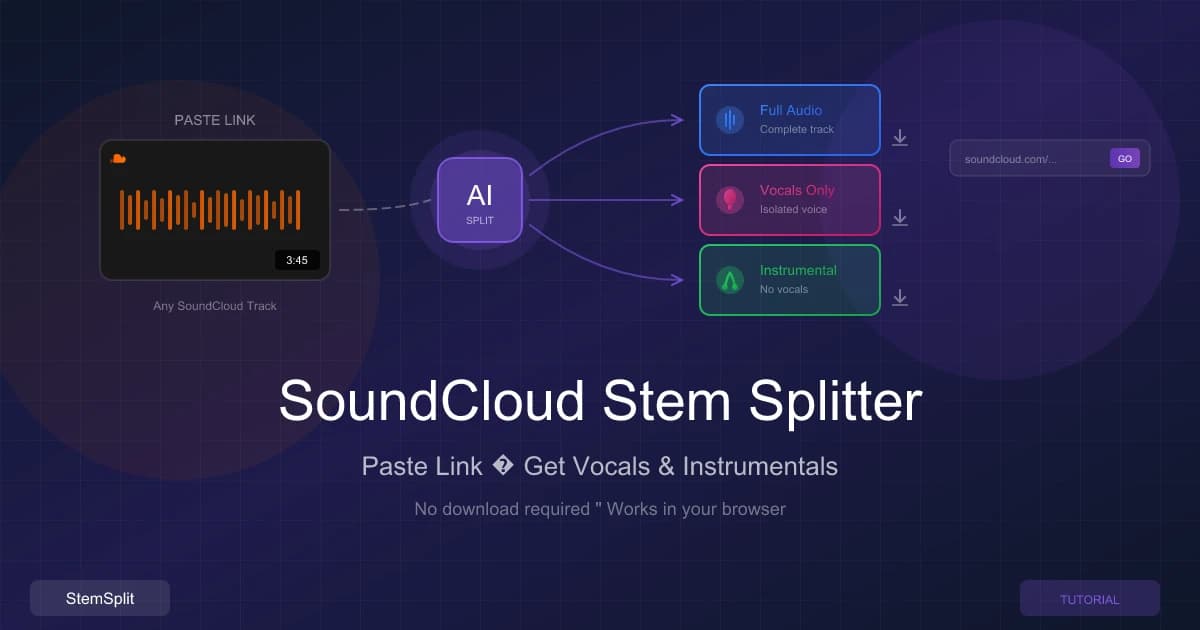
Don't want to troubleshoot Python environments and GPU drivers? StemSplit runs optimized Demucs in the cloud — preview 30 seconds free, no setup required.


When DIY Makes Sense

Let's be honest about when running Demucs locally makes sense:

ScenarioDIY DemucsCloud Service (StemSplit)
Processing volumeHigh volume (100+ songs)Occasional use
HardwareYou have a good GPUCPU only or no GPU
Technical skillComfortable with Python/CLIPrefer GUI
Privacy requirementsNeed to keep audio localCloud is acceptable
BudgetHave time, not moneyHave money, not time
CustomizationNeed to fine-tune modelsStandard separation is fine
Preview before payingNot availableFree 30-sec preview

Cost Comparison

DIY Demucs:

  • Hardware: $0 (existing) to $800+ (GPU upgrade)
  • Electricity: ~$0.01-0.05 per song
  • Time: Setup (1-4 hours) + processing time
  • Maintenance: Updates, troubleshooting

StemSplit:

  • No setup
  • Pay per use (credits never expire)
  • Free preview before committing
  • Always using latest models

The Real Talk

If you:

  • Process stems professionally and regularly
  • Have ML experience and want to customize
  • Need to process thousands of files
  • Have privacy requirements for unreleased music

Set up Demucs locally.

If you:

  • Need stems occasionally
  • Don't want to manage Python environments
  • Want to preview quality before committing
  • Value convenience over cost optimization

Use a service like StemSplit.


FAQ

Is Demucs free?

Yes. Demucs is open source under the MIT license, free for personal and commercial use. The models are also freely available.

Can I use Demucs commercially?

Yes. The MIT license permits commercial use without restrictions. You can use separated stems in commercial releases, build products on top of Demucs, etc.

What's the difference between Demucs and Spleeter?

AspectDemucsSpleeter
DeveloperMeta AIDeezer
ArchitectureHybrid TransformerSimple U-Net
Quality (SDR)~9.2 dB~5.9 dB
ProcessingWaveform + SpectrogramSpectrogram only
SpeedSlowerFaster
Released2019 (v1), 2023 (v4)2019

Demucs produces significantly higher quality but requires more compute.

Do I need a GPU?

No, but it helps significantly. CPU processing works but is 5-10x slower. A modern NVIDIA GPU with 4GB+ VRAM is recommended for reasonable processing times.

How long does processing take?

Depends on hardware and model:

  • GPU (RTX 3080): ~45 seconds for a 4-minute song
  • CPU (modern i7): ~8-15 minutes for a 4-minute song

What audio formats does Demucs support?

Input: MP3, WAV, FLAC, OGG, M4A, and anything FFmpeg can decode. Output: WAV (default), MP3 (with --mp3 flag).

Why do my stems have artifacts?

Common causes:

  1. Low-quality source file (use 320kbps+ or lossless)
  2. Heavily compressed/limited master
  3. Using lighter model (try htdemucs_ft)
  4. Complex, dense arrangement with overlapping frequencies

Can Demucs separate more than 4 stems?

Yes. Use htdemucs_6s for 6-stem separation:

  • Vocals
  • Drums
  • Bass
  • Guitar
  • Piano
  • Other

How do I update Demucs?

pip install -U demucs

Where are models downloaded to?

Models are cached in:

  • Linux/Mac: ~/.cache/torch/hub/checkpoints/
  • Windows: C:\Users\<username>\.cache\torch\hub\checkpoints\

Conclusion

Demucs represents the cutting edge of AI-powered music source separation. Whether you're a producer isolating samples, a researcher pushing the boundaries of audio ML, or just someone who wants to create a karaoke track, understanding how this technology works gives you more control over your results.

For most users, the easiest path is using a service that handles the infrastructure. For power users and ML practitioners, running Demucs locally offers maximum control and customization.


Ready to Try Stem Separation?

You've seen how the technology works. Now experience it.

Option 1: Run it yourself — Follow this guide to set up Demucs locally.

Option 2: Skip the setupStemSplit runs Demucs htdemucs_ft in the cloud. Upload your song, preview 30 seconds free, and download studio-quality stems. No Python required.

Try StemSplit Free →


Further Reading

Tags

#Demucs#AI#machine learning#stem separation#tutorial#Meta AI#htdemucs#deep learning